Views and embedding
A view combines sources and presentation settings. Open Calendar → Views → Create view, enter a name, select one or more sources and keep View enabled on. Save the view before copying its shortcode.
Display and templates
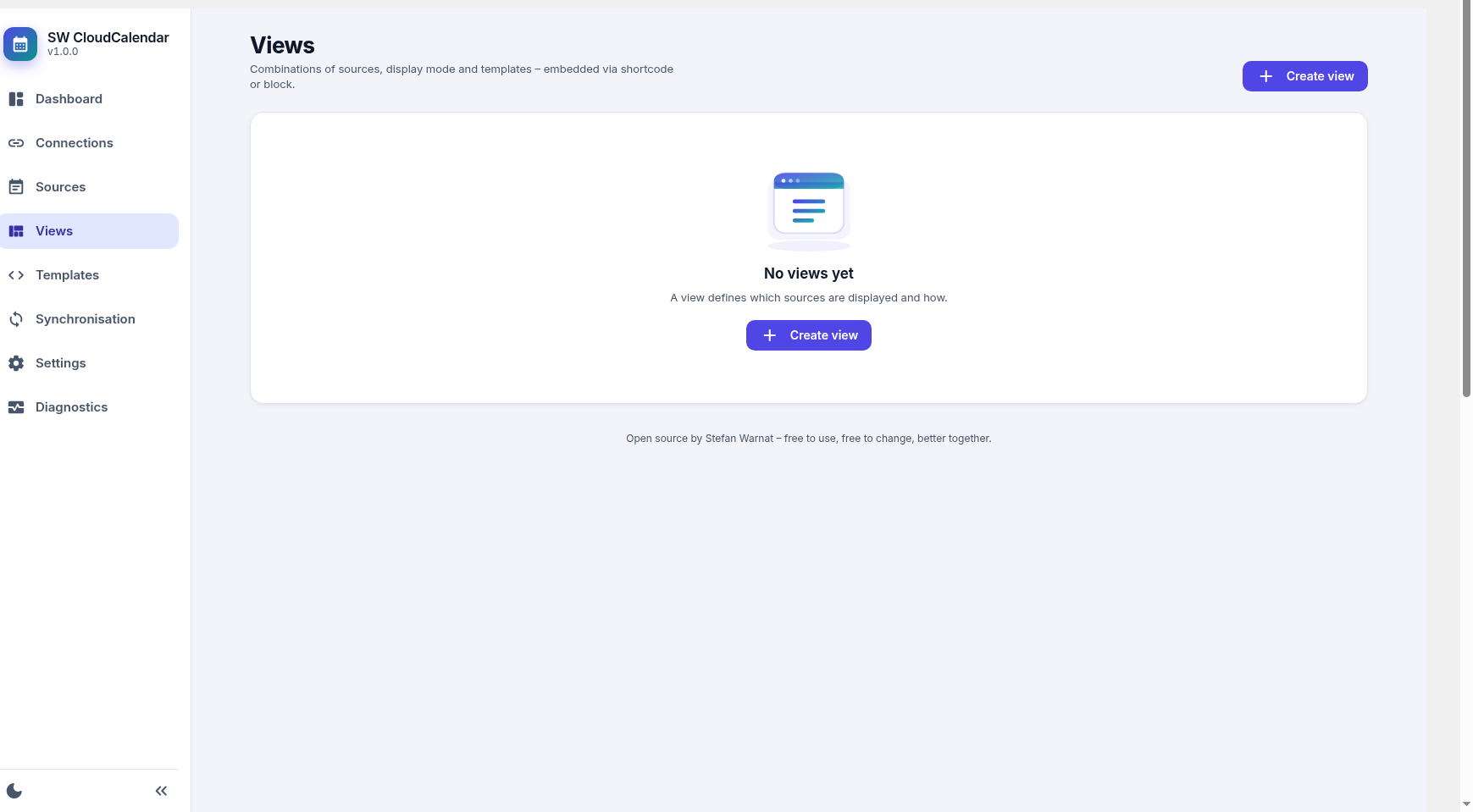
Initial Views screen with no saved views. Choose Create view after creating and activating a source; this screenshot does not demonstrate a configured calendar or a successful synchronisation.
Under Display & templates, select Default display mode:
- List: a continuous event list, optionally with multiple columns.
- Cards: events in a grid.
- Month: weekday/day cells with events inside each day.
Display modes allowed for embeds permits an embed to request additional modes. It does not itself add tabs. Enable Display tabs on the website to show tabs for allowed modes (off by default). Show event search is on by default in all modes; it searches titles, descriptions and locations within the selected date range across result pages.
Choose Preset (default) initially. Custom Container template, Event template and Detail template control the frame, single event and opened detail respectively. Templates per display mode can override container/event templates for a particular mode; View default inherits the shared selection. Alternative event templates permits embedding-time alternatives; it does not change the default design. See templates.
Use Colours per source to override source colours in this view. Primary colour styles the mode tabs/search button. Optional Use calendar colour for titles, Show calendar legend, Columns (1–4) and Visible events per day (1–20) adjust presentation. Shared month navigation links views with the same group name; leave it empty for independent navigation.
Add to WordPress
Use Copy shortcode and paste into a Shortcode block, replacing this example ID with your saved view's ID:
[sw_calendar id="12"]Or insert Calendar (SW CloudCalendar) in the block editor and select the saved view. The shortcode and block use the same view settings and visibility rules. Test the page as an anonymous visitor as well as while signed in.
Filters and navigation
Under Default filters, empty fields use defaults. Set a result count, days from today or explicit date range, past events, search, location, sort and image/file display. Explicit Start/End dates take priority over Days from today, which takes priority over the normal range. A selected month can constrain list/cards as well as Month output.
Concrete embed examples (IDs are illustrative):
[sw_calendar id="12" view="list" limit="5" days="30"]
[sw_calendar id="12" source="2,3" search="Community meeting"]
[sw_calendar id="12" start="2026-12-01" end="2026-12-31" location="Hall"]
[sw_calendar id="12" view="cards" template="7" show_images="true" show_attachments="false"]
[sw_calendar id="12" navigation="false"]
[sw_calendar id="12" mode_switcher="true" show_search="true"]
Source filters can only narrow the view, never add unselected or inaccessible sources. A requested mode must be allowed. Additional event templates must be approved in the view. category is not supported. The complete filter contract is in the REST/filter reference.
Show navigation is on initially: Month uses Previous month / Next month, List/Cards use Earlier events / More events. Earlier events have ended before the display range. Switching from the automatic month grid to List/Cards restores the configured date range; explicitly selecting a month constrains those modes too. Public controls work without JavaScript; protected/local views normally require it.
Time and preview
Under Time & format, use the site time zone or select a view-specific zone. Empty language uses the WordPress site language; a specific language uses a WordPress locale such as en_US. Empty date/time formats inherit WordPress; custom formats use PHP date syntax.
Live preview uses the current editing state and real data with your access rights. Enter a name and select a source first; refresh the preview after changes and save the view. A successful administrator preview does not prove anonymous access is safe.
Protected calendars and preloading
By default Preload initial view with the page is off. Views containing protected or local sources are dynamic: events load through REST in the browser instead of entering potentially shared page HTML. Allow the calendar scripts and WordPress REST requests; do not cache private/local REST responses.
Enabling preloading under Time & format places authorised calendar HTML in the first page response, including for private/local sources. Navigation, search and details remain interactive.
Shared-cache responsibility
Private events may now be present in the page source. Exclude the embedding page from shared WordPress, reverse-proxy and CDN caches, or configure those caches per user. The plugin rechecks access and separates its private/local HTML cache by visitor, but a full-page cache bypassing WordPress also bypasses those checks. A local adapter can restrict visitors even when a source is marked public.
Preload cache duration defaults to 60 minutes (range 60–10080). Keep Use HTML cache and the global HTML cache enabled to reuse output. The first request fills the cache; there is no background warming. With caching disabled the initial HTML is still rendered inline on each request. Local changes and date boundaries can remain stale for the configured duration. Successful empty calendars are cached; incomplete/failed adapter results are not. Saving the view or changing relevant template/source revisions, or Clear cache, can invalidate output sooner.